


You never want to see a ‘storage full’ message pop up on your phone. It means you’re not going to be able to install new apps, or capture new photos, videos, or audio messages, because there’s nowhere to put them. You won’t be able to sync music or podcasts, if the storage is all filled up.
The good news is, you can preemptively prevent this from happening by doing a little bit of regular digital housekeeping. Android and iOS now come with features to make it easier for you to manage local storage, whether it’s deleting files completely or sending them off to the cloud for safe keeping.
These are your options for keeping a sizable chunk of space available on your phone for when you need it.
How to free up space on Android
Android comes with a Google app called FIles, and if you load this up you can begin diving in and deleting files manually. The Downloads folder is a good starting point: It’s likely there are quite a few files here that you’ve downloaded from the web and forgotten about, and that you don’t need any more.
Tap the three dots to the right of a file then Move to trash to delete it (it will stay in the Trash folder for 30 days before being completely wiped). To delete several files at once, tap one of the check boxes on the right to start selecting, then tap the trashcan icon at the top to confirm your choice.
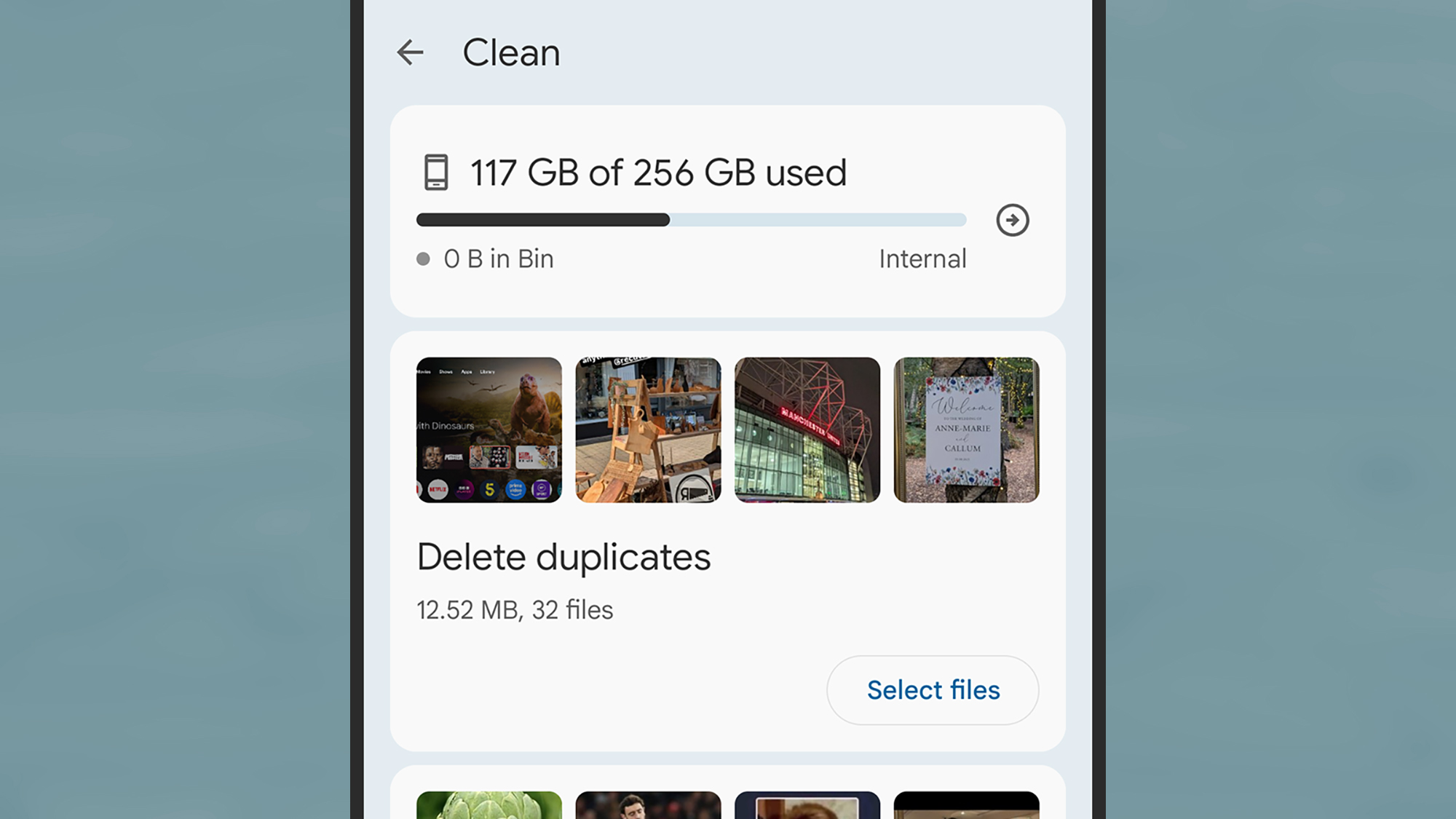
The Files app comes with a dedicated tool for freeing up storage. From the front screen, tap the menu icon (three horizontal lines, top left), then select Clean. You’ll be shown a breakdown of how much room is left on your phone, together with ways to increase it. These might include deleting duplicate files and screenshots, but the options you see will vary depending on your device.
For example, you might see an option to Delete memes—images detected as standard meme templates that your contacts have sent to you over messaging apps. Pick Select files, and you can choose which memes to delete before sending them to the Trash folder.
You might also be advised to delete certain apps via the Files app, but you can also do this yourself from the Settings page in Android by choosing Apps, then selecting an app, and tapping Uninstall. Under Storage and cache you can see the space each app takes up, which can help you figure out what to get rid of (remember these apps can always be reinstalled, if needed).
Speaking of apps, it’s worth double-checking any offline content you might have cached in your media apps. In Spotify, for example, tap your profile picture (top left), then Settings and privacy > Data-saving and offline to see how much room is being taken up by the app, and to get to the Remove all downloads option.
Finally, there’s a separate option in Google Photos for Android. If you tap your profile picture (top right), then Free up space on this device, you’ll be able to delete local copies of photos and videos that have been safely backed up to the cloud. Bear in mind though that you should always keep another backup somewhere else, in case anything should happen to your files in the cloud.
How to free up space on iOS
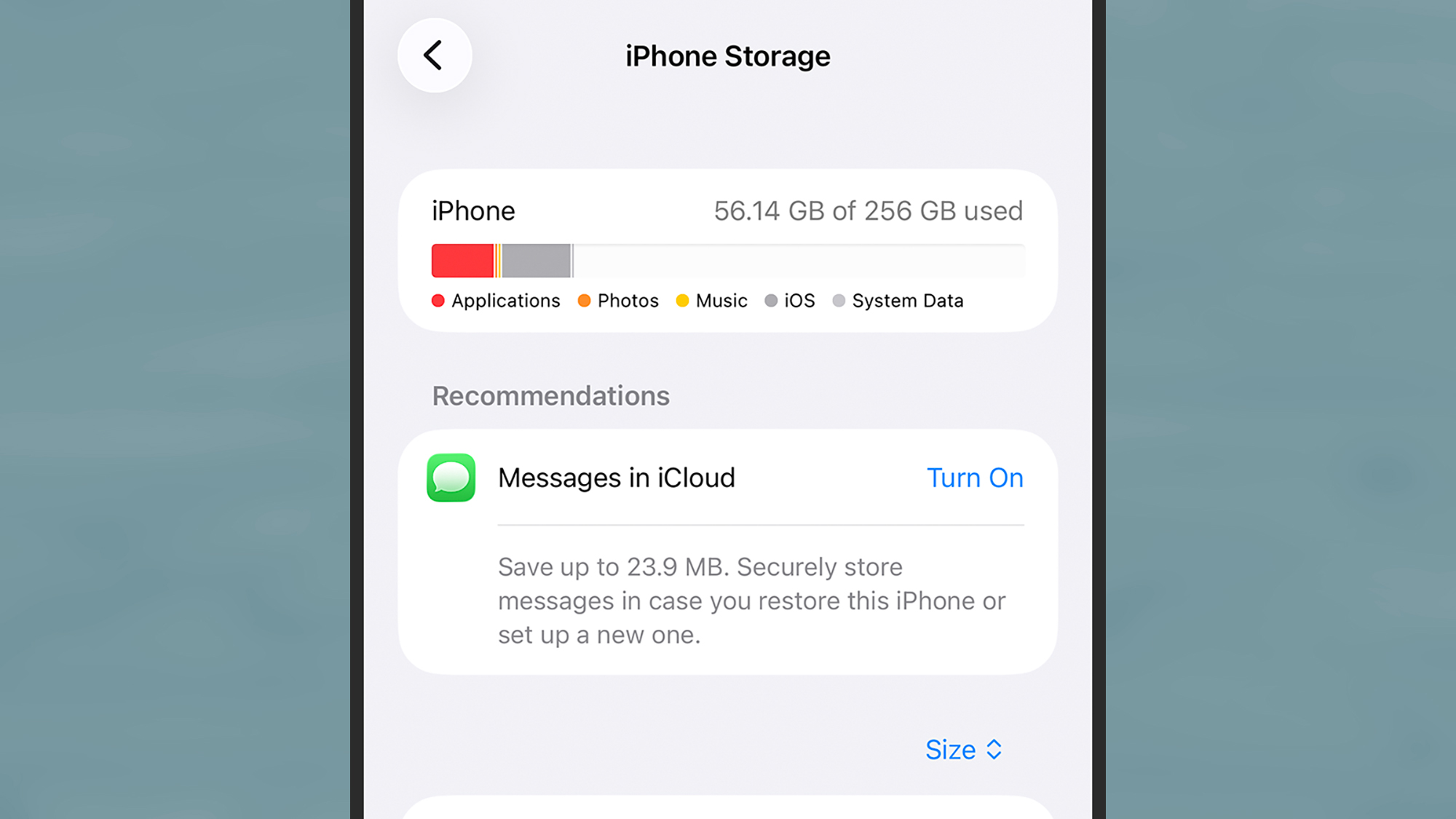
Over on the iPhone, there is a tool for identifying ways you can free up more storage space, but it’s not in the native Files app for iOS. Instead, you need to go to Settings, then tap General > iPhone Storage. You’ll see how much storage space is spare, and some suggestions for what you can do about it.
Scroll down and you get a full list of the apps installed on your phone, with the biggest ones at the top—it might be worth removing any you don’t use regularly. Tap on an app name and there are two options: Offload App (which keeps the app in place but deletes all the data it has stored locally), and Delete App (which removes it completely).
You can also uninstall apps from the App Library screen to free up space: Tap and hold on an app icon, then pick Delete App. Bear in mind you can always reinstall these apps again later, or even use the web app versions through Safari, if you find you need them again.
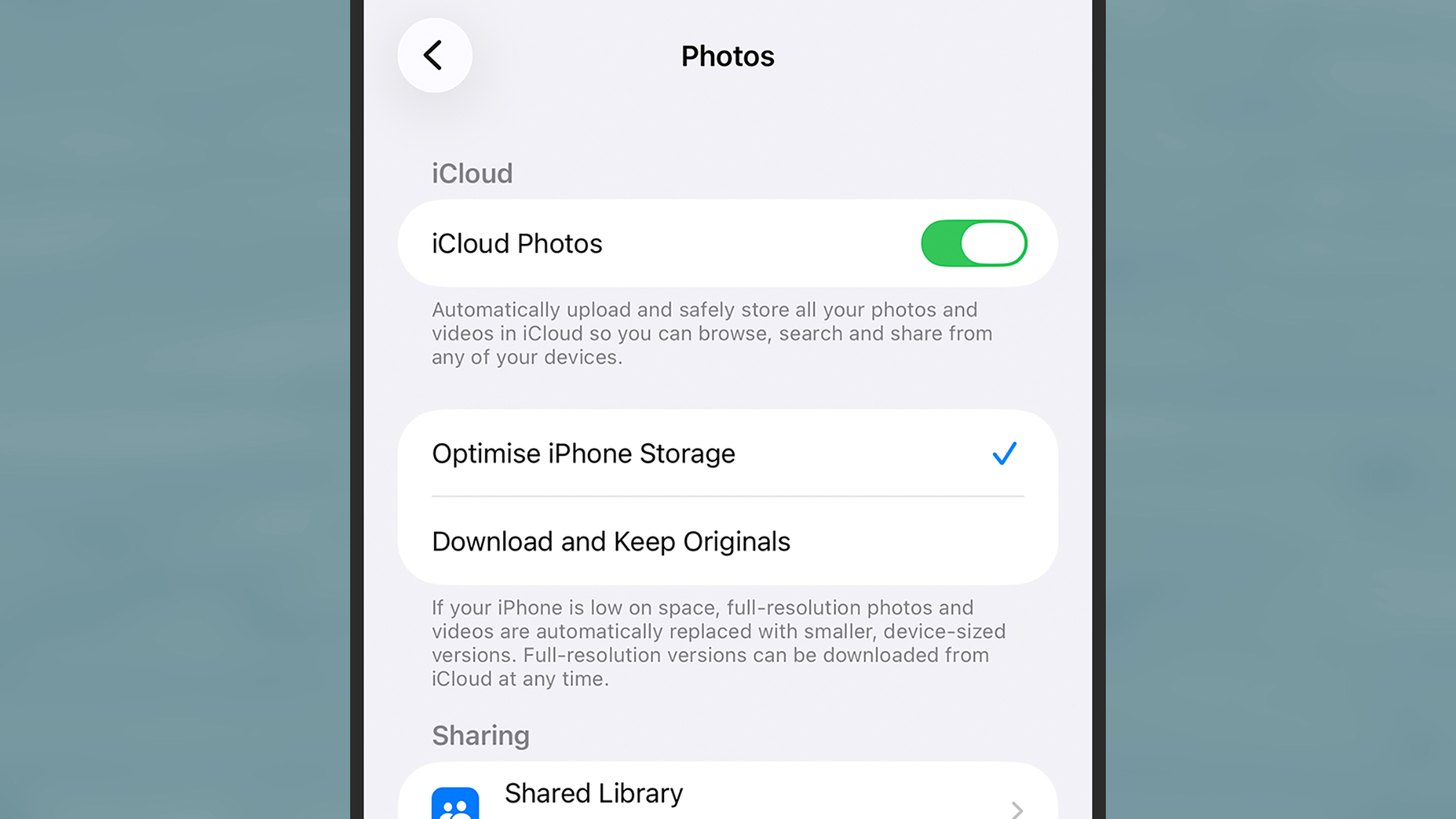
Photos and videos can take up a good chunk of space on a phone. If you open iOS Settings and pick Apps > Photos, you’ll find an Optimize iPhone Storage option, if you’re syncing to iCloud—this means lower-resolution versions of your files will be saved locally, as long as they’re safely backed up to the cloud.
Google Photos for iOS offers something similar, if that’s your photo and video app of choice. Inside the app, tap your profile picture, then choose Free up space on this device and you get the option to delete local copies of photos and videos that are saved in the cloud. With any of these clean-up tools though, remember that cloud copies are not enough on their own—you do need to make sure these files are saved somewhere else as well (like on a laptop), just in case.
It’s worth digging through media apps that may have saved content for watching or listening too offline as well (the iPhone Storage screen will tip you off to some of these). To check downloaded content in the Netflix app, for example, open the My Netflix tab and then choose Downloads.
Finally, you can use the iOS Files app for manual deletions as well. From the Browse screen, tap On My iPhone: Long press on a file to find the Delete option, or tap the three dots (top right) and Select to pick multiple files (a trash can icon will show up at the bottom). The files get moved to the Recently Deleted folder for 30 days, and after that they’ll be wiped permanently.

2025 PopSci Best of What’s New